
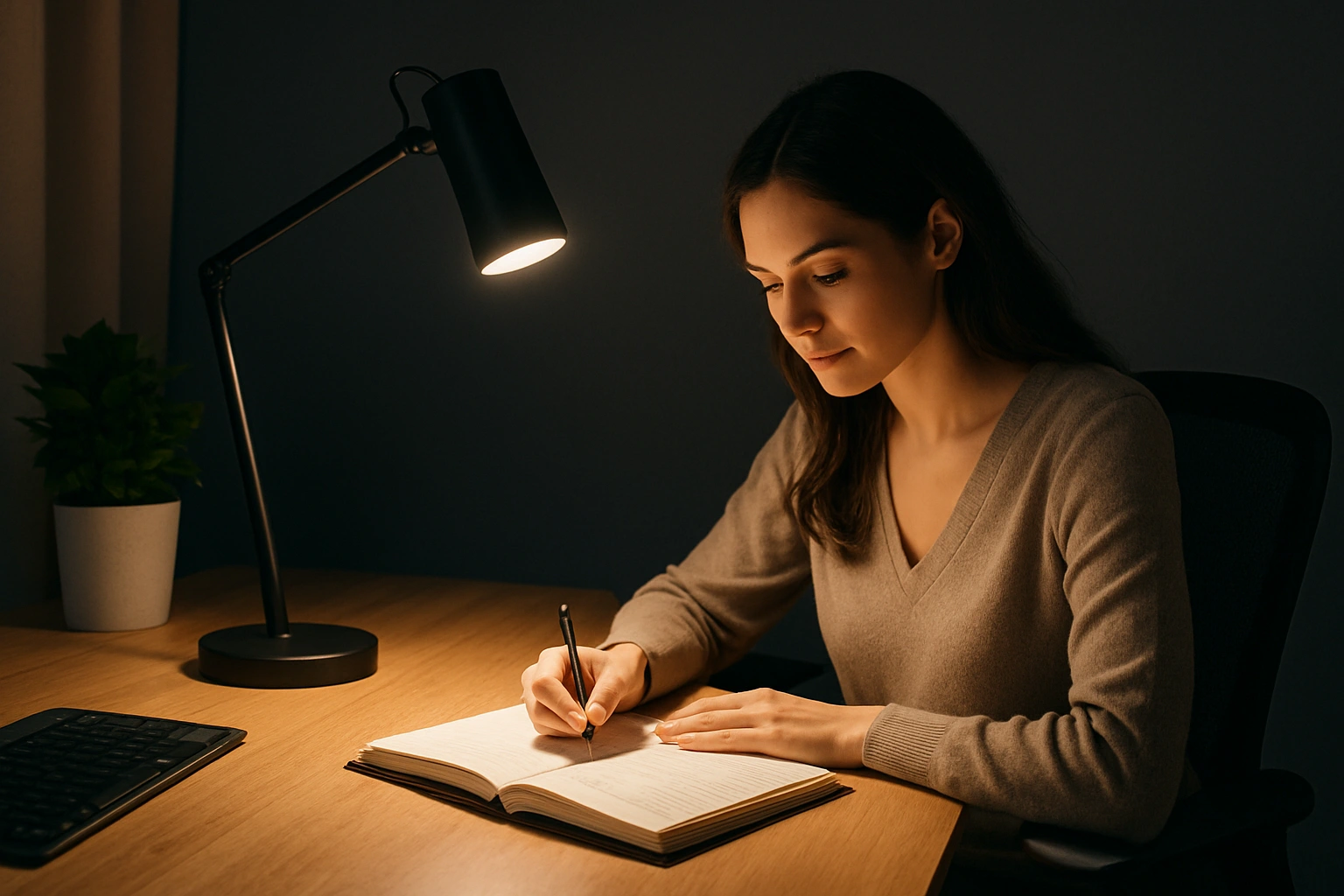
Good workspace lighting should make it easier to see, read, type, and concentrate without forcing your eyes to constantly adapt between bright and dark areas. The best setup usually combines comfortable ambient light with focused task lighting rather than relying on one very bright lamp.
Whether you are studying, working from home, reading, designing, or using a computer for hours at a time, the goal is the same: enough light for the task, low glare, comfortable contrast, and lighting that suits the time of day.
1. Why Workspace Lighting Matters
Poor lighting does not automatically reduce intelligence or attention, but it can make visual tasks more tiring. Excessive glare, deep shadows, insufficient illumination, and strong contrast between a bright screen and a dark room can all make sustained work less comfortable.
Good workspace lighting supports the visual task without becoming a distraction itself. That means providing enough light where you need it, keeping bright sources out of direct view, and avoiding unnecessary reflections on screens or glossy surfaces.
- Too little light: can make reading and detailed work more difficult.
- Too much light: can create glare, reflections, and visual discomfort.
- Uneven lighting: forces the eyes to repeatedly adapt between very bright and very dark areas.
- Well-balanced lighting: makes the task clear without overwhelming the surrounding space.
2. Start With Ambient Light, Then Add Task Light
A comfortable work area usually has two layers of illumination: ambient light for the room and task light for the specific activity.
Ambient lighting keeps the surrounding environment from becoming too dark, while task lighting gives you extra illumination where precision is needed.
- Ambient light: ceiling fixtures, wall lighting, indirect lamps, or daylight that provide general room illumination.
- Task light: a desk lamp, under-shelf strip, or adjustable fixture aimed at the work surface.
- Accent light: optional lower-level lighting that can reduce harsh visual contrast and make the space more comfortable.
If your desk lamp is the only light in an otherwise dark room, the desk may look bright while the overall environment still feels tiring. Adding moderate ambient light often produces a more comfortable result than simply increasing the task lamp output.
3. How to Position a Desk Lamp
Lamp position matters as much as lamp brightness. The goal is to illuminate the task without shining directly into your eyes or reflecting from the surface you are viewing.
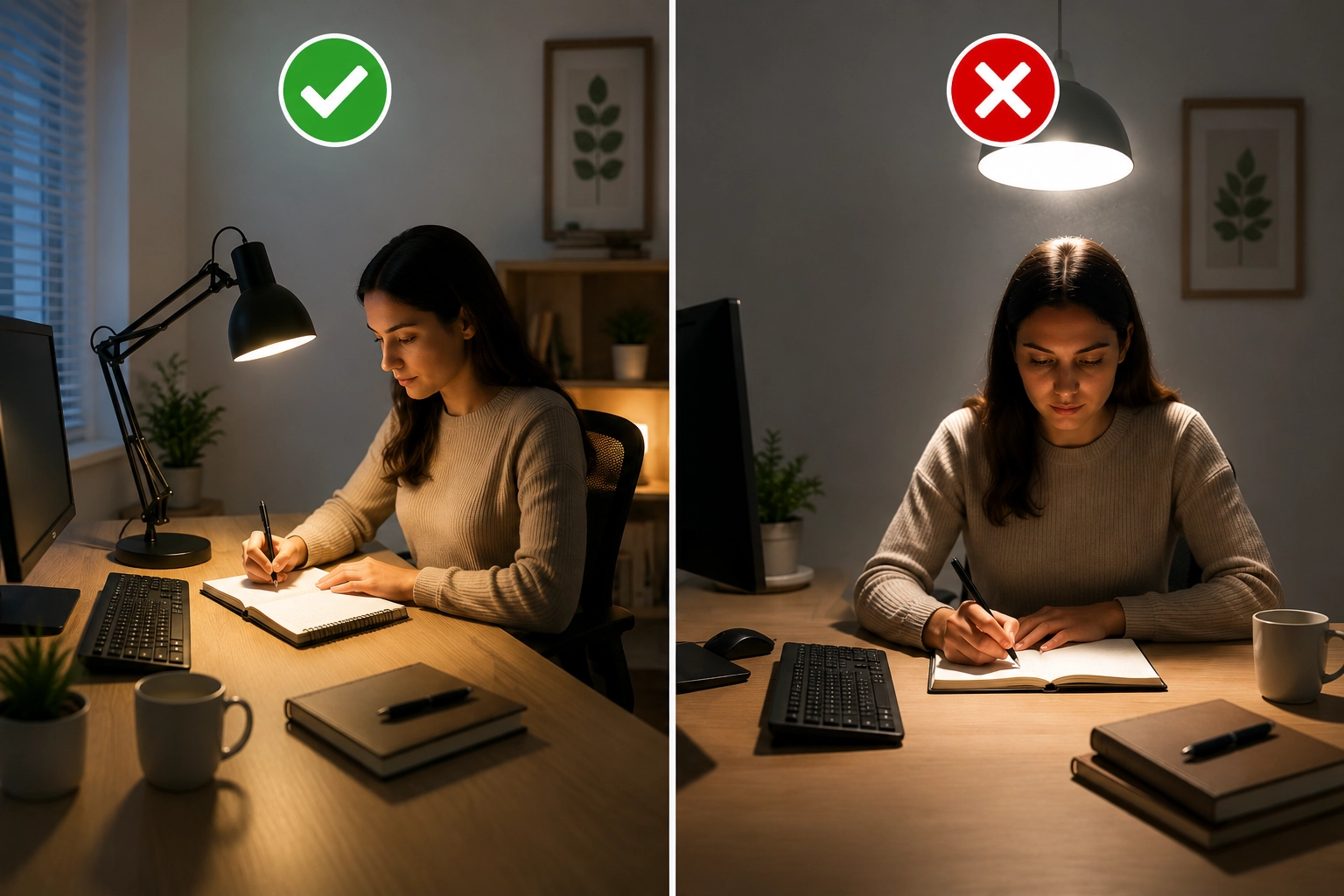
- Place the lamp to the side rather than directly in front of your eyes.
- For handwriting or drawing, position the lamp so your dominant hand does not cast a shadow across the work.
- Aim the light downward toward the task rather than horizontally across the room.
- Keep bare LEDs or very bright lamp heads outside your normal field of view.
- Adjust the lamp height and angle until the work surface is evenly lit without a concentrated hotspot.
There is no universal correct distance such as 12 or 18 inches. A small low-output lamp and a powerful task fixture can require very different positions.
4. Monitor Lighting and Screen Contrast
Computer work creates a special lighting problem because the screen is already a source of light. A bright display in a dark room can produce strong contrast, while a badly positioned lamp can create visible reflections on the screen.
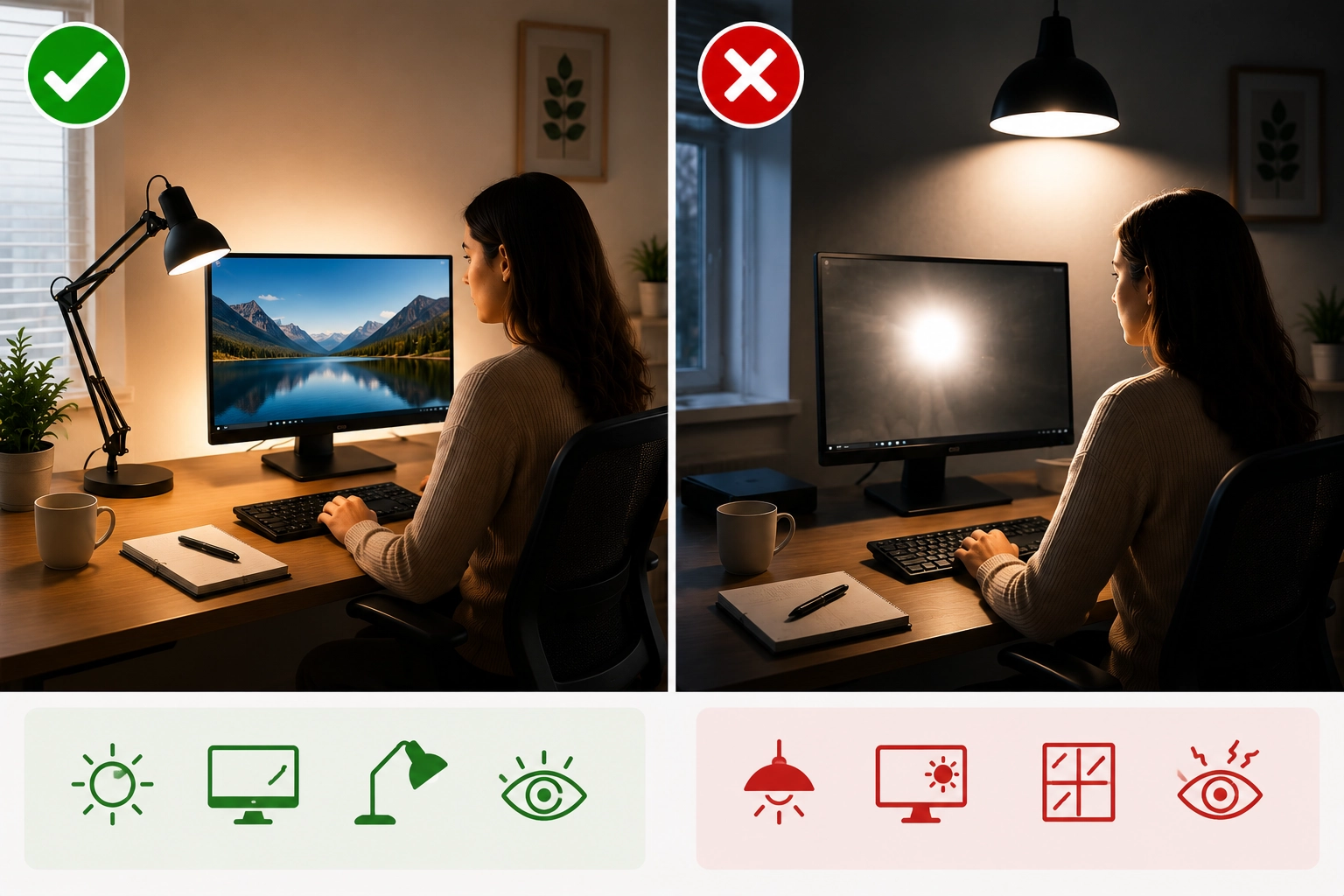
- Adjust room lighting so the monitor is not dramatically brighter than everything around it.
- Avoid placing a bright lamp directly behind you if it reflects in the screen.
- Position windows and lamps to the side when practical.
- Adjust monitor brightness to suit the room rather than leaving it at one fixed setting all day.
- Use blinds or shades if direct sunlight creates glare on the display.
A softly illuminated wall behind or beside the monitor can also reduce the sensation of staring at a bright rectangle surrounded by darkness.
5. How Much Light Do You Actually Need?
The right amount of light depends on what you are doing. General computer work may need less illumination on the desk than reading printed text, drawing, sewing, drafting, or inspecting fine detail.
Many office and desk tasks are commonly performed under roughly 300-500 lux at the work surface, while visually demanding tasks may benefit from higher levels. The ideal value still depends on age, contrast, task detail, glare, and personal comfort.
More light is not automatically better. If increasing brightness causes reflections, squinting, or discomfort, improve the direction and distribution of the light instead of simply adding more output.
6. Color Temperature, CRI, and What Really Matters
Color temperature describes whether white light appears warmer or cooler, but there is no single Kelvin value that guarantees better concentration.
- Warm white: can feel comfortable during evening work or relaxed reading.
- Neutral white: works well for many general office and study environments.
- Cooler white: may feel more alerting during daytime work, particularly in spaces with strong daylight.
If your work involves photography, illustration, product evaluation, or other color-sensitive tasks, color rendering becomes more important. A high-CRI source can make colors appear more natural and consistent.
For ordinary computer work, however, high CRI does not automatically prevent eye strain. Glare, brightness, contrast, flicker, viewing distance, and breaks are usually more important to comfort.
7. Flicker, Glare, and Visual Fatigue
Long periods of concentrated near work can produce tired or dry eyes even in a well-lit room. Lighting should reduce unnecessary visual stress rather than being treated as the only cause of discomfort.
- Avoid direct glare from exposed LEDs or bright fixtures.
- Choose well-designed, low-flicker lighting when possible.
- Reposition lamps before adding anti-glare filters or reducing all room lighting.
- Blink regularly during prolonged screen use.
- Take periodic breaks from near-focus work.
A commonly used reminder is the 20-20-20 rule: about every 20 minutes, look at something roughly 20 feet away for around 20 seconds. The exact timing is less important than regularly giving your eyes a break from continuous close focus.
8. Lighting Through a Long Work or Study Day
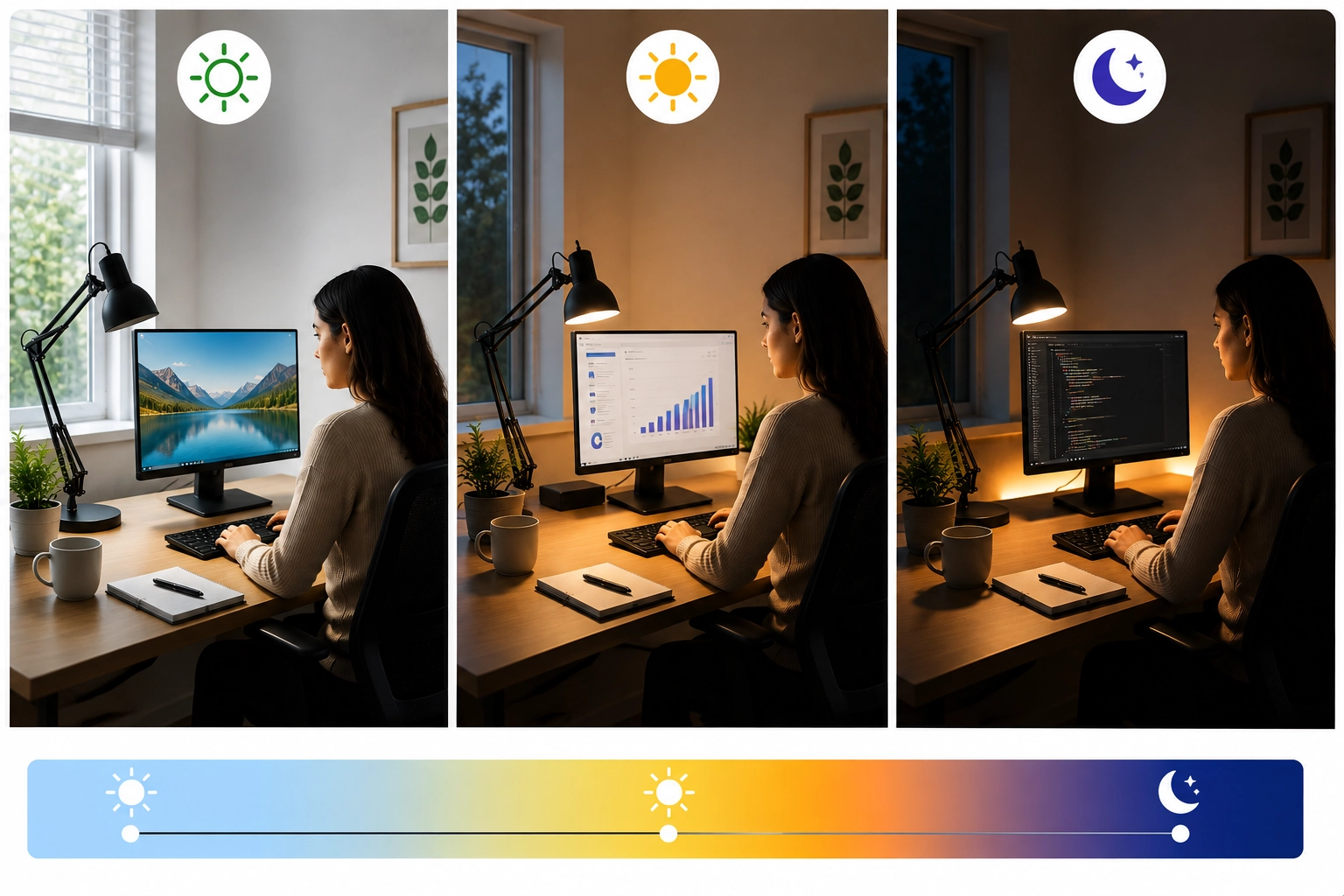
Your workspace does not need to look the same at 9 a.m. and 9 p.m. Lighting can change with daylight, task demands, and the approach of bedtime.
Morning
Open blinds or curtains and use available daylight. If the room is dim, supplement it with brighter ambient lighting.
Midday
Keep the room comfortably bright and use focused task lighting only where you need additional detail.
Late Afternoon
As daylight fades, increase electric ambient light gradually rather than allowing the monitor to become the brightest object in the room.
Evening
If you must continue working close to bedtime, begin reducing overall brightness and consider warmer lighting so the workspace transitions out of daytime mode.
9. Practical Workspace Setups
Student Study Desk
Use moderate ambient room lighting plus an adjustable task lamp aimed at books or notes. Keep the lamp outside direct view and reposition it if your writing hand creates shadows.
Home Office
Use daylight from the side when available, maintain enough ambient light around the monitor, and use a desk lamp for paperwork or detailed tasks. Avoid placing the desk directly opposite an unshaded bright window if glare becomes a problem.
Creative or Art Desk
Use high-quality, high-CRI lighting when accurate color appearance matters. Provide broad, even illumination across the working surface rather than one concentrated hotspot.
Video Calls
Place a diffuse light in front of you and slightly above eye level rather than relying entirely on overhead lighting. Keep the background moderately illuminated so the camera does not have to balance an extremely bright face against a dark room.
10. Useful Equipment & Setup Ideas
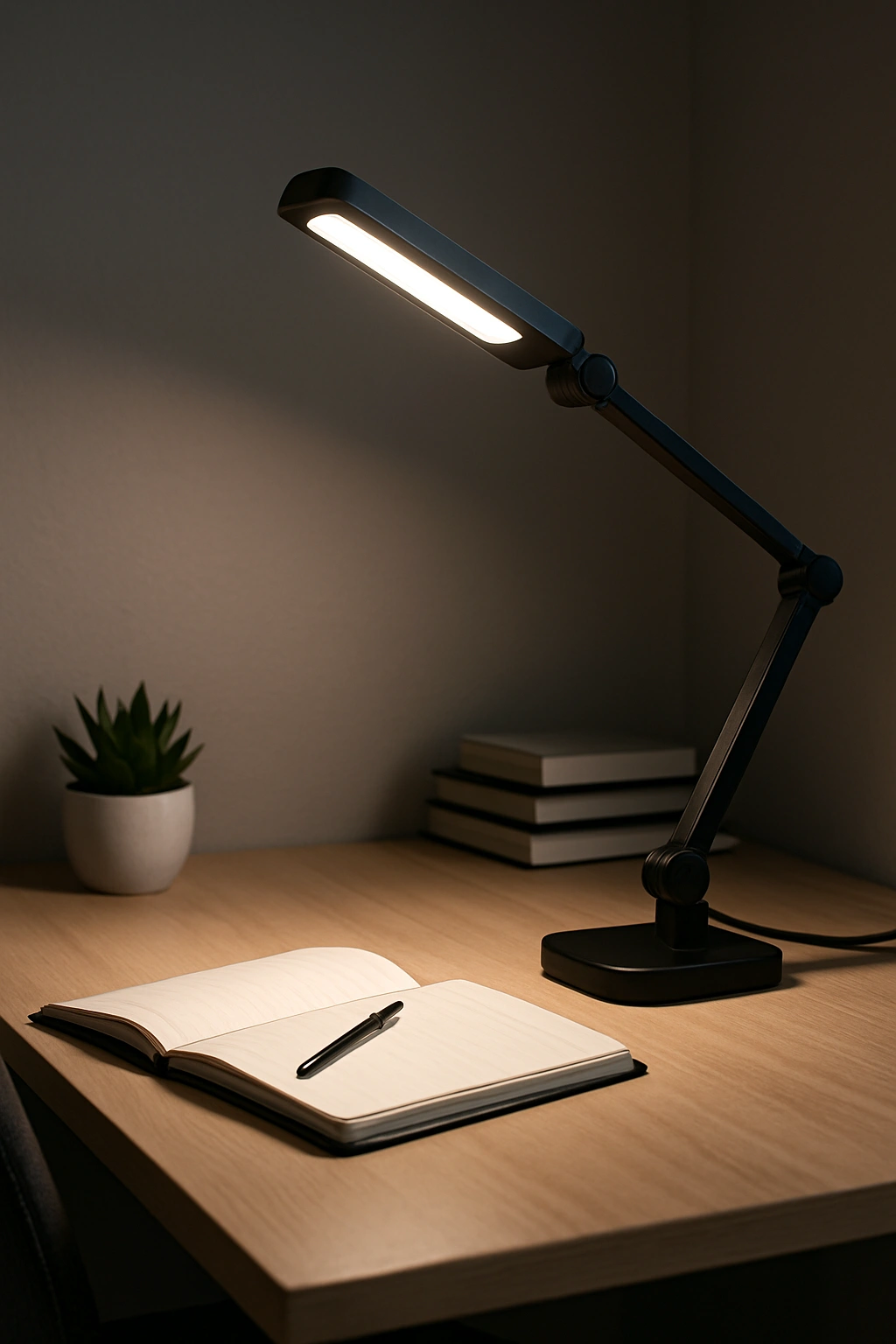
Look for an adjustable head or arm, smooth dimming, good diffusion, stable positioning, and enough output for your work surface. Tunable white can be useful if you work both during the day and late evening.
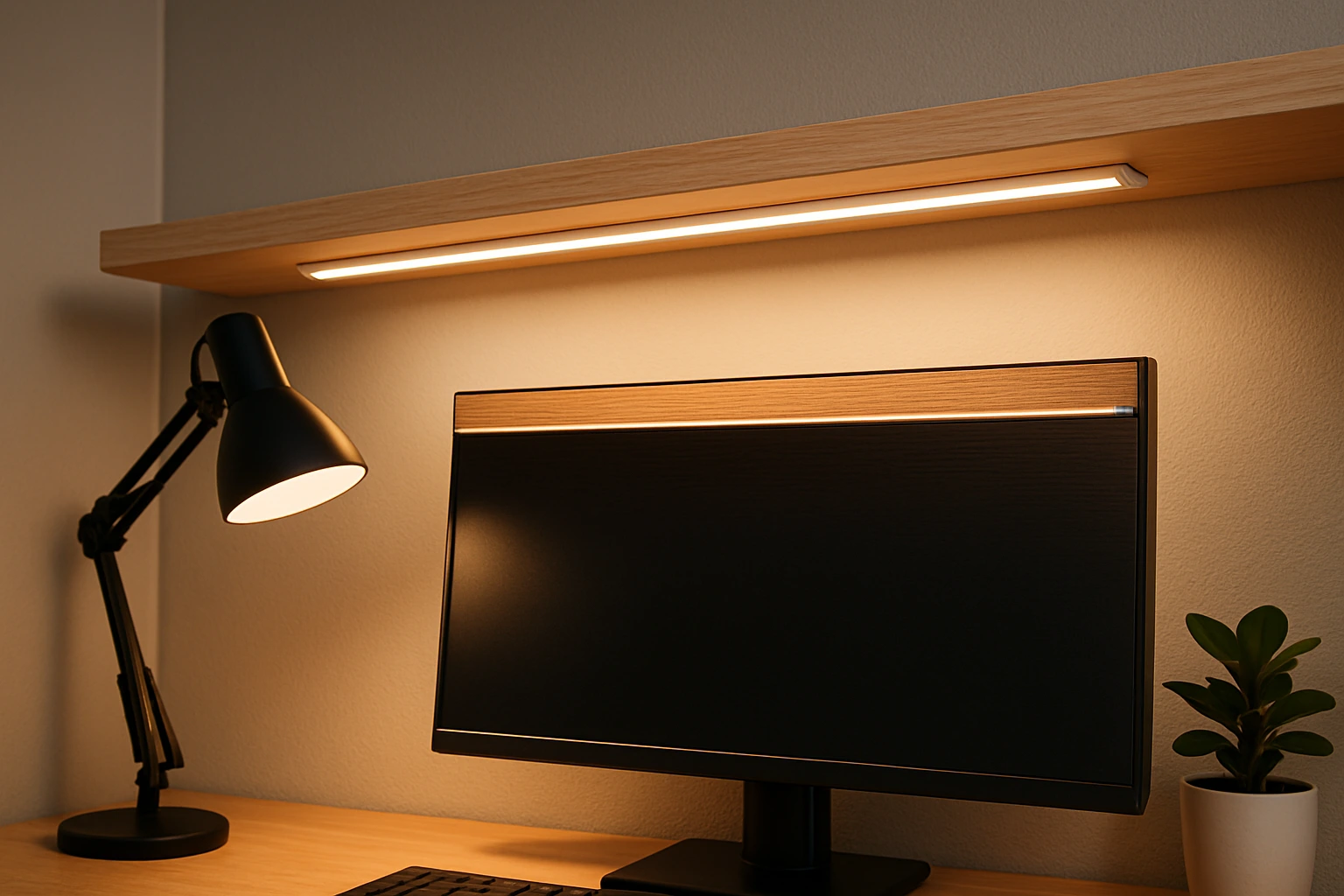
A concealed strip can illuminate a desk surface or provide gentle light behind a monitor without taking up desk space. Choose a diffuser when possible so individual LEDs are not directly visible.
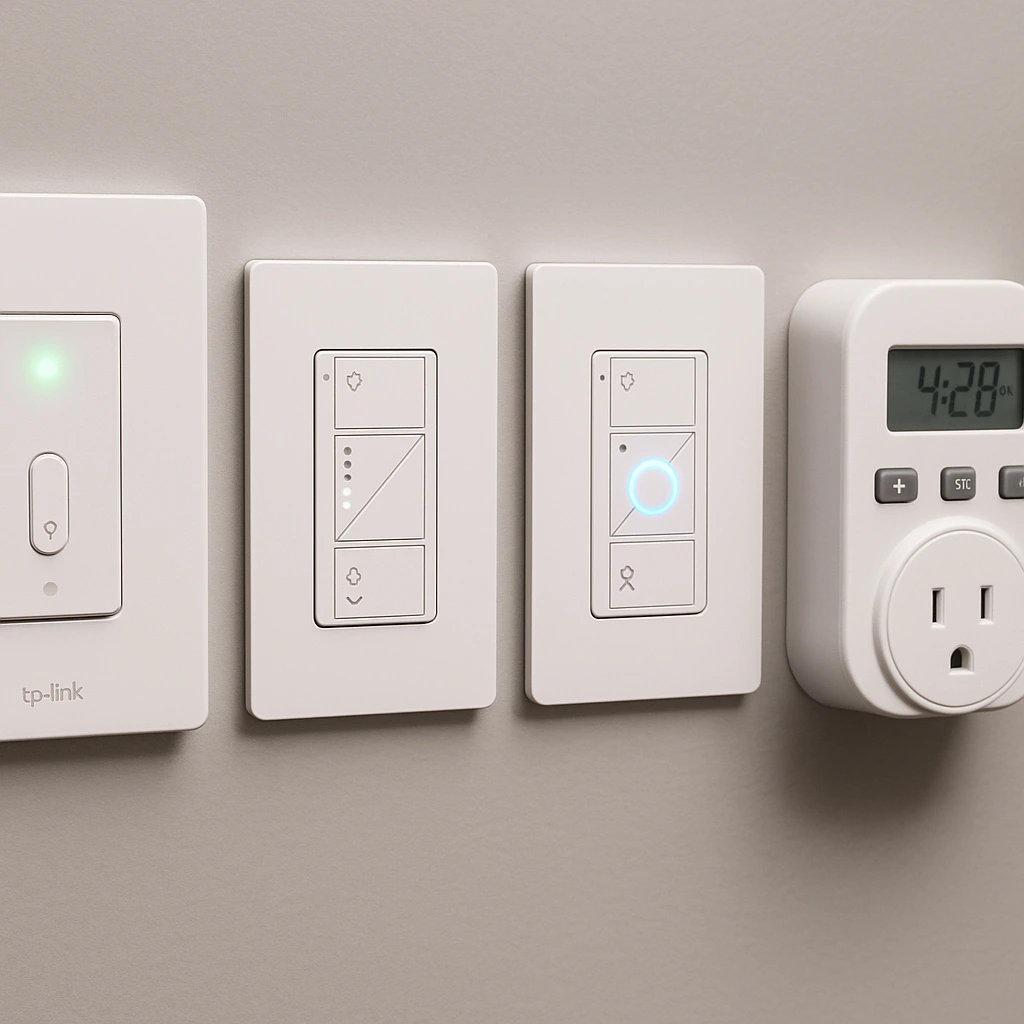
Dimmers make one lighting setup useful for several tasks and times of day. Timers or smart controls can automatically reduce brightness later in the evening.
Setup Tips
- Start with comfortable ambient room light before adding more task light.
- Position task lamps to minimize shadows and reflections.
- Keep exposed bright LEDs outside your normal field of view.
- Match monitor brightness to the surrounding room.
- Use daylight when available, but control direct glare with blinds or shades.
- Adjust lighting as daylight and task demands change instead of using one fixed setting all day.
LEDHost Tip
Fix placement before buying more brightness. A modest lamp in the right position, combined with comfortable ambient light, is often better than a powerful lamp aimed poorly. Your eyes should notice the work - not the lighting.
More in the Health Zone
Frequently Asked Questions
Ask a Question
All questions are reviewed before publishing.